










Comunidad
Haz preguntas, comparte guías, reporta bugs y encuentra un gremio. Jugadores de todos los idiomas son bienvenidos.


Top contributors2 points per topic, 1 per reply, 2 per reaction you receive, 5 when your reply is marked as the solution.
No contributors yet. Be the first.
Fewer crashes and a new anti-aliasing option
We fixed a memory leak that could close the game during long sessions. You can now choose your own anti-aliasing level in the game options and in the launcher.
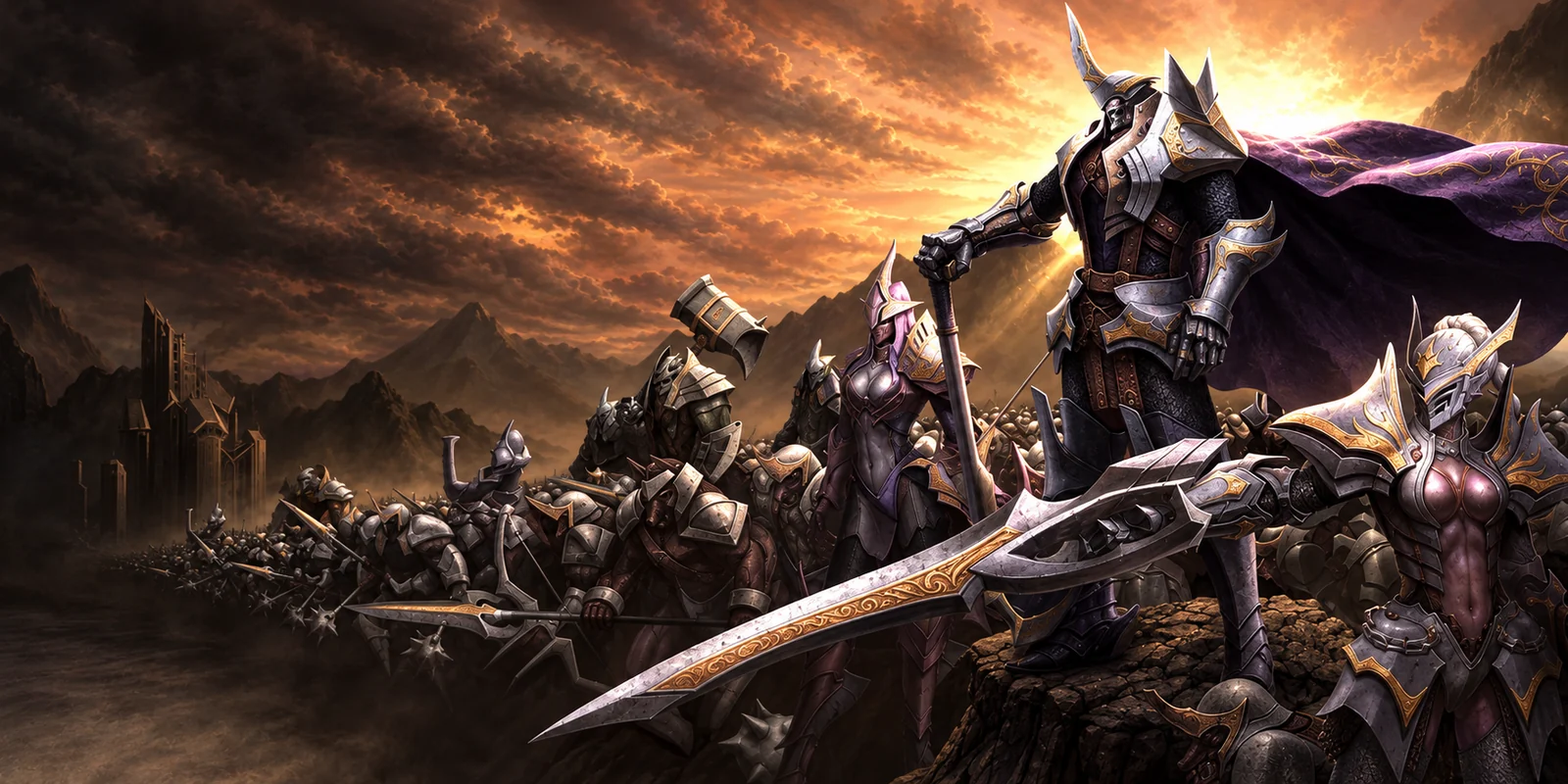
This update fixes the most common reason the game closed on its own during long play sessions, and lets you pick how much anti-aliasing the game uses. Everything here is already live: update through the launcher if you have not yet.
Fewer crashes in long sessions
Some players saw the game close without any error after playing for a while. The cause was a memory leak in the game's interface: part of it kept creating new text effects and never released the old ones. Over a long session the game ran out of memory and closed.
The interface now reuses its text effects, so memory use stays flat no matter how long you play.
Choose your anti-aliasing
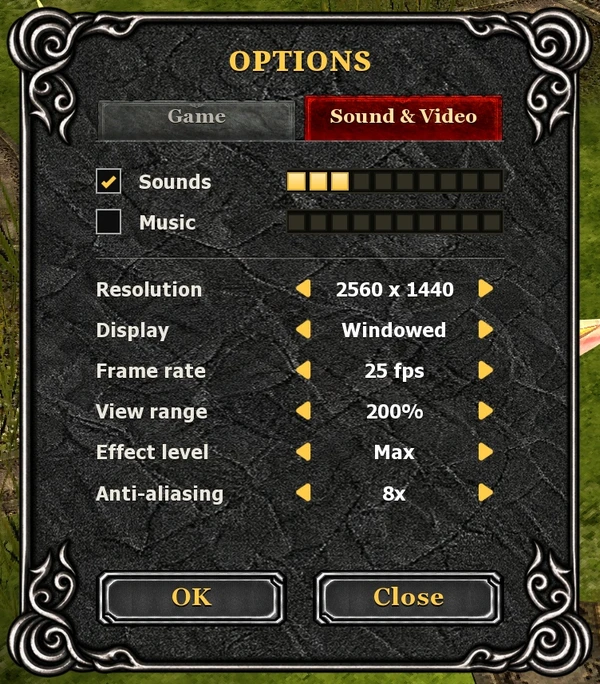
Anti-aliasing smooths the jagged edges on characters, monsters and the world. Until now every player got 16x, the highest level. That looks best, but it costs the most on weaker graphics cards.
- In the game: open Escape > Options > Sound & Video and set Anti-aliasing to Off, 2x, 4x, 8x or 16x, then press OK.
- In the launcher: open Settings > Game and pick the same option there.
- Applies on the next start: restart the game after changing it.
- Default stays 16x: if you never touch it, nothing changes for you.
If your game feels slow, try 4x or Off. On a strong graphics card, 16x is the sharpest look.
Inicia sesión para reaccionar. Iniciar sesión
Sin respuestas
Inicia sesión para unirte a la conversación.
Inicia sesión para responder