





Сообщество
Задавайте вопросы, делитесь гайдами, сообщайте о багах и ищите гильдию. Рады игрокам на любом языке.


Top contributors2 points per topic, 1 per reply, 2 per reaction you receive, 5 when your reply is marked as the solution.
No contributors yet. Be the first.
Launcher 1.0 is here
The launcher reaches version 1.0. It has a forged steel Play button with live download effects, a rebuilt options window with four tabs, and news that tells you what you have not read yet.
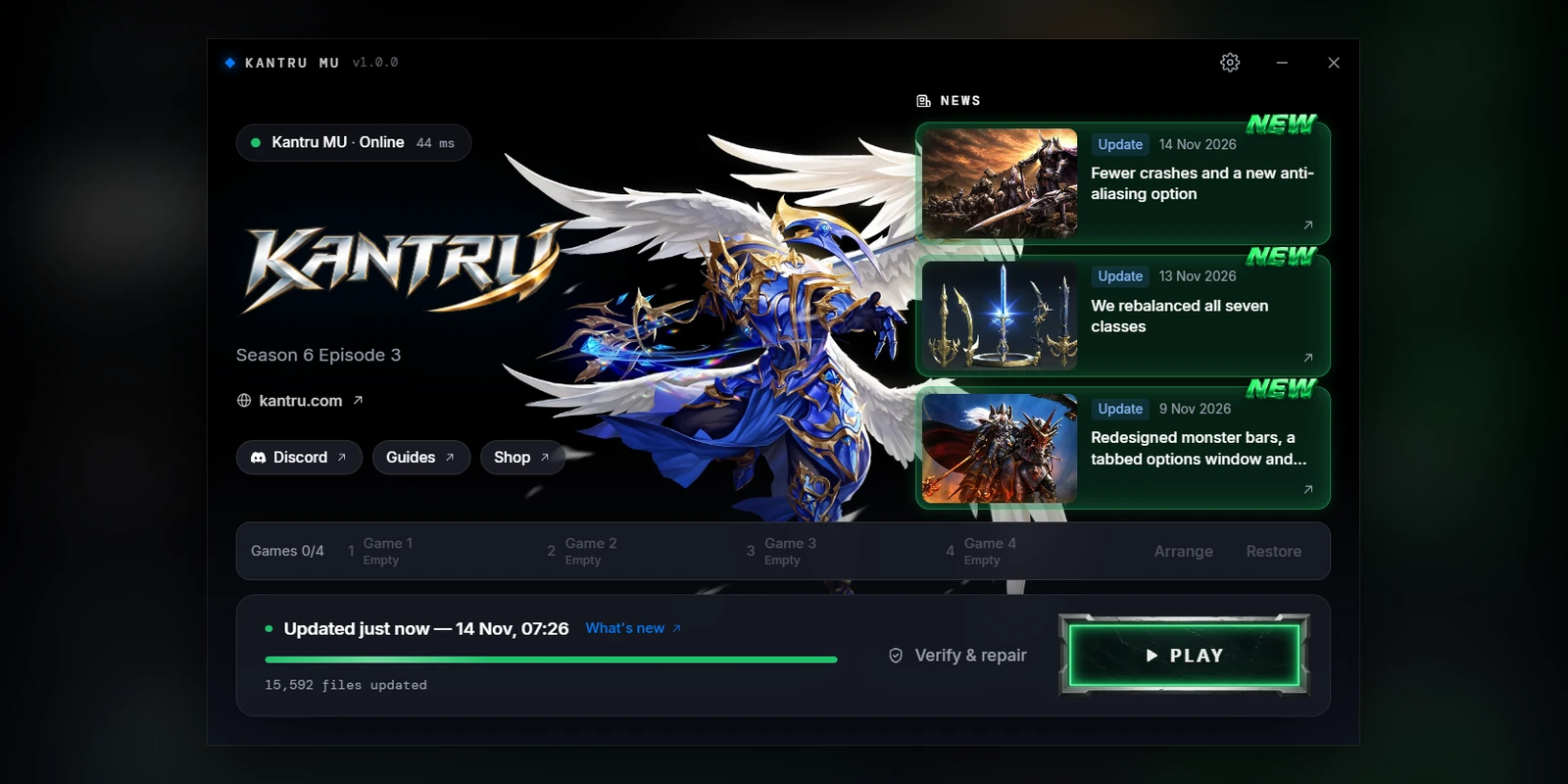
The Kantru launcher is now version 1.0. This is the biggest launcher update so far: a new Play button, a rebuilt options window and a news feed that shows you what is new. You do not need to download anything. The launcher updates itself the next time you open it.
At a glance
| Area | Before | Now in 1.0 |
|---|---|---|
| Play button | Flat blue button | Forged steel frame with an emerald glow |
| Download progress | A plain bar inside the button | A glowing fill with a bright leading edge and drifting embers |
| Options | One long panel inside the launcher | Its own window with four tabs and no scrolling |
| Option help | Long text under every setting | A small info icon you can hover |
| News | Short cards | Taller cards with pictures and a NEW badge on unread posts |
| Multiple game windows | Mixed in with other settings | Its own tab with saved logins, saved accounts and shortcuts |
The new Play button
The Play button is the part of the launcher you use most, so it got the most attention. It now has a forged steel frame around a dark stone panel, lit by an emerald glow.
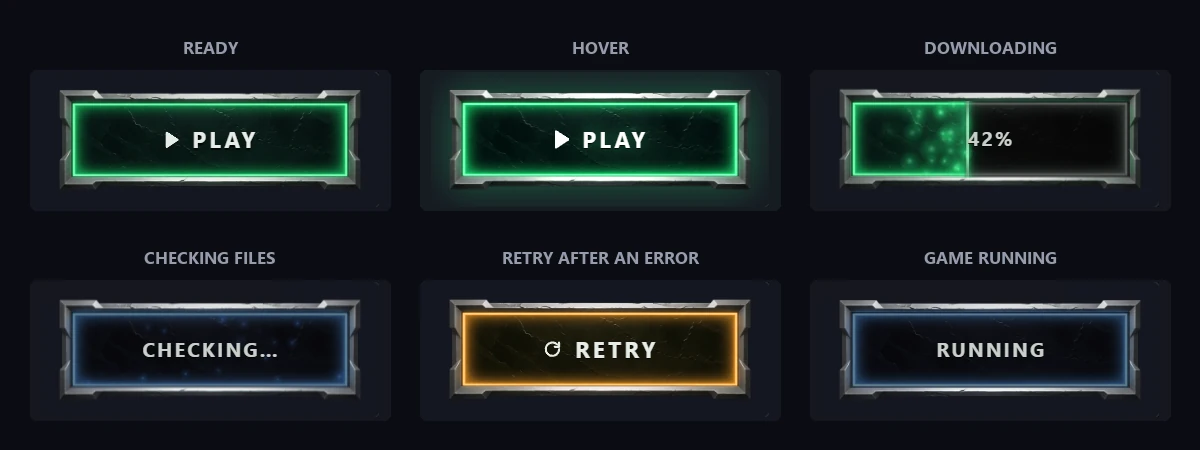
- Ready: the button glows green when the game is ready.
- Hover: the frame brightens, the glow swells and a shine sweeps across the panel.
- Downloading: the panel fills up from left to right while the update downloads.
- Checking files: the button turns blue and faint motes drift across it.
- Retry: if an update fails, the button turns amber so you can try again.
- Game running: the button stays blue while your game is open.
In short: green means you can play, blue means wait, and amber means something needs another try. The colours arrived in launcher 1.0.1.

Live download effects
While an update downloads, the fill shows how far it has come. A thin emerald line marks the edge and flashes each time the percentage goes up. Small embers drift through the filled part and gather at the edge. The fill and the bar beside it glide smoothly instead of jumping between updates.

If you turned off animation effects in Windows, the button skips these animations.
A rebuilt options window
Click the gear icon at the top of the launcher to open the options. They now open in their own window that you can move anywhere on your screen.
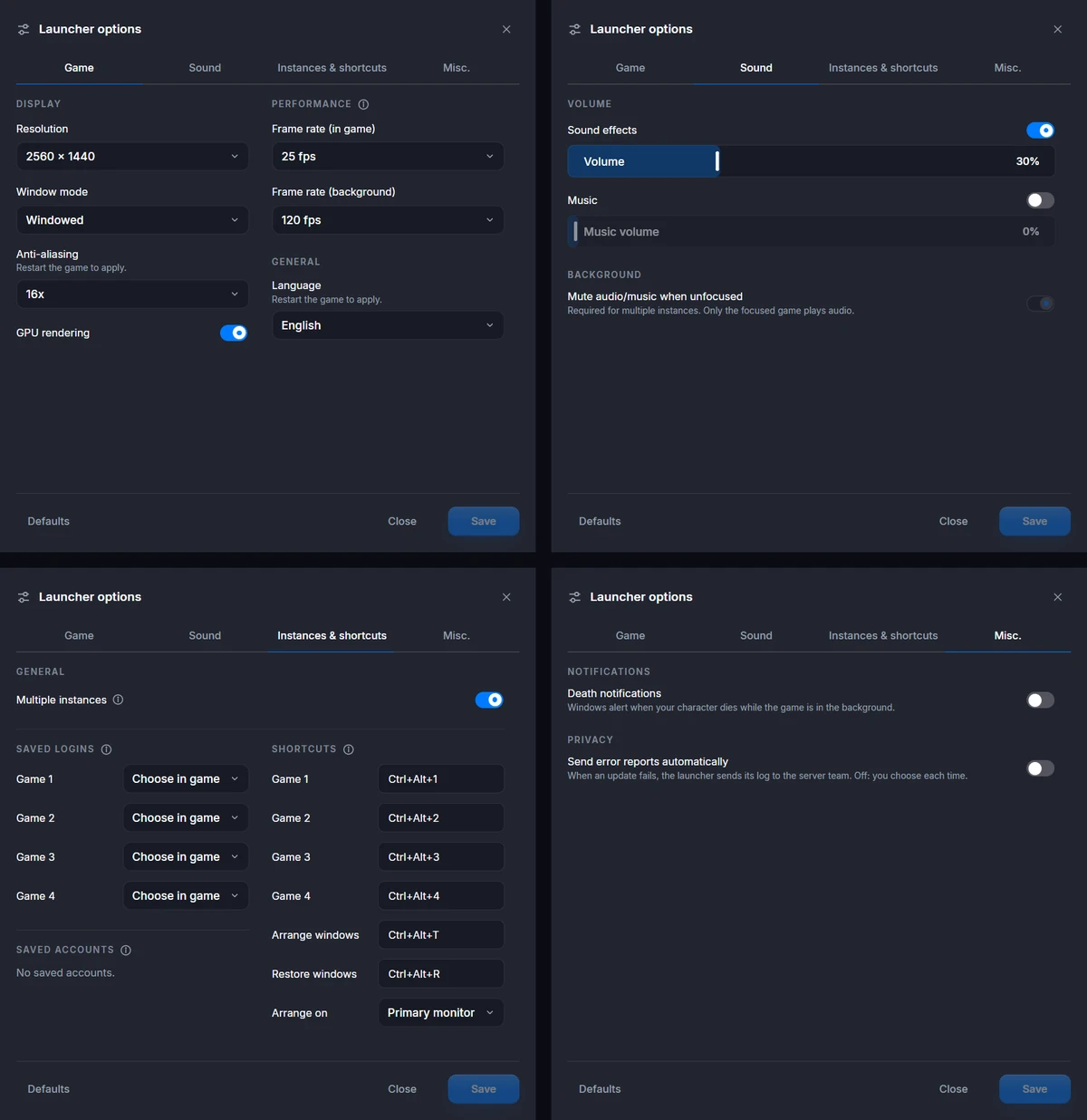
- Game: resolution, window mode, anti-aliasing and graphics on the left; frame rate and language on the right.
- Sound: sound effects, music and their volumes, plus muting the game when its window is in the background.
- Instances & shortcuts: everything for playing several characters at once (see below).
- Misc.: death notifications and automatic error reports.
Every tab fits on one screen, so you never have to scroll. Longer explanations now sit behind a small i icon next to the setting. Hover it to read more.
Playing several characters at once
The Instances & shortcuts tab collects everything for running more than one game window.
- Multiple instances: one switch at the top turns it on or off.
- Saved logins: pick which saved account each game window (Game 1 to Game 4) logs in with.
- Saved accounts: a compact list of your saved accounts. Click the bin icon to remove one.
- Shortcuts: keyboard shortcuts to bring each game window to the front, and to arrange or restore all of them.
- Arrange on: choose which monitor the windows are arranged on.
A news feed that shows what is new
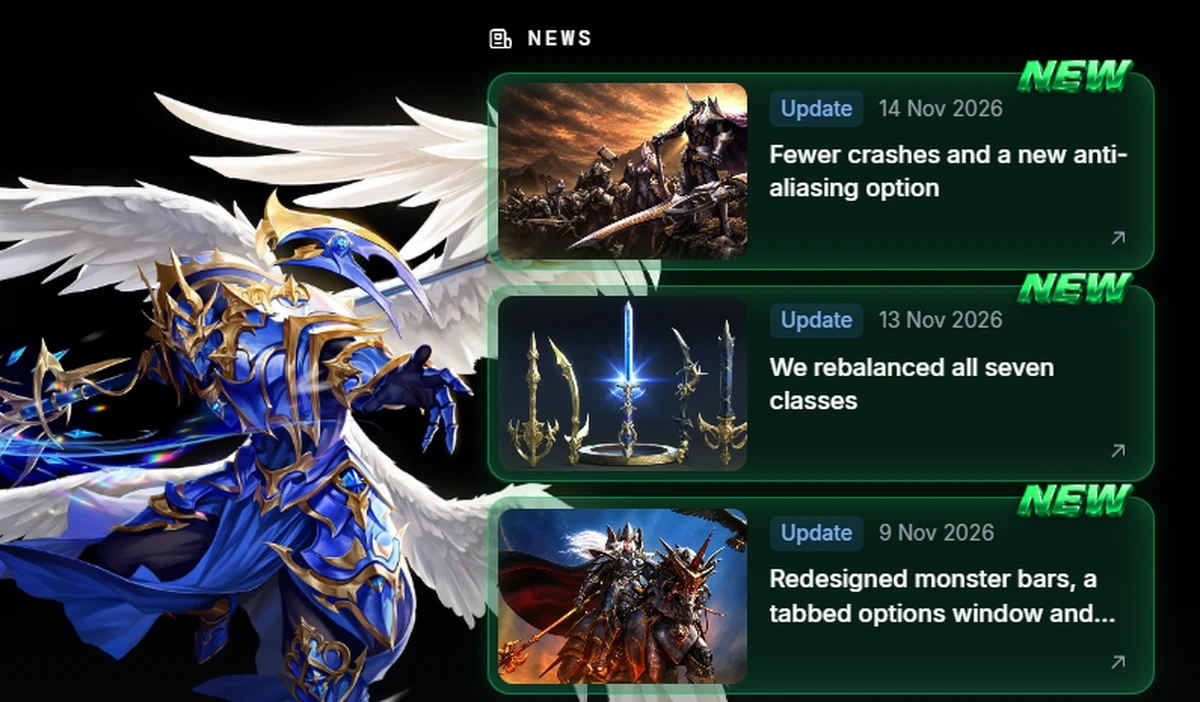
The news cards on the right are taller and show each post's picture.
- NEW badge: posts from the last 14 days that you have not opened yet get a green tint, a soft pulsing glow and a NEW badge.
- Fades when read: click a post and its badge and glow fade away.
- Remembered: the launcher remembers what you have read, so the badge stays gone after a restart.
- No overlap: launcher messages at the top now stop before the news column instead of covering it.
How to get it
Open the launcher. It finds version 1.0 and updates itself in a few seconds. The version number at the top left then shows v1.0.1.
Found something that looks off? Tell us on Discord.
Войдите, чтобы ставить реакции. Войти
Нет ответов
Войдите, чтобы присоединиться к разговору.
Войти, чтобы ответить