
Launcher
What the Kantru MU launcher does, every button and option in it, and what to do when something goes wrong.
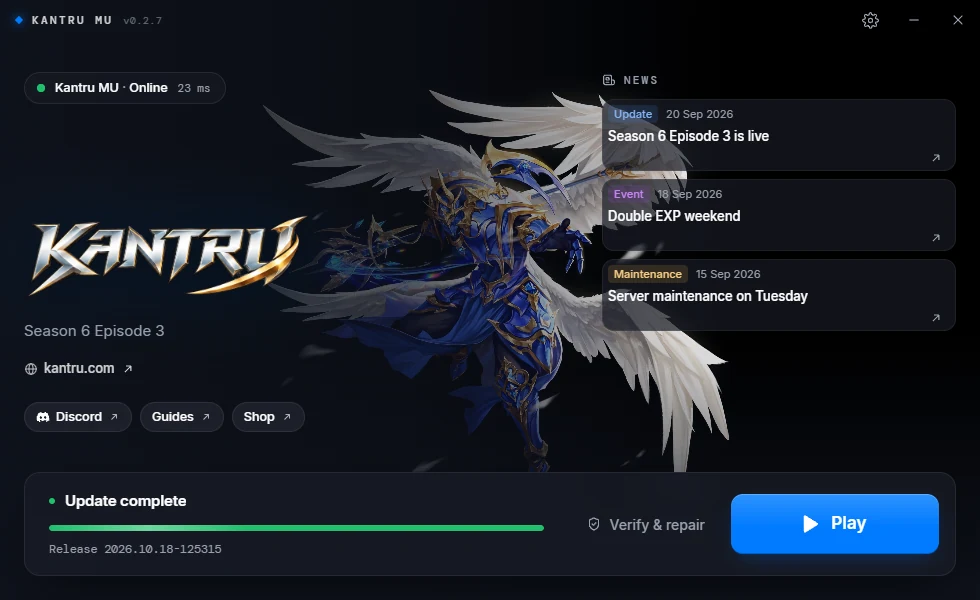
The launcher is the program you open to play Kantru MU. It keeps the game up to date, repairs broken files, starts the game, runs several games side by side and holds the game options. Always start the game from the launcher: the server only lets in a game that the launcher started.
The launcher is a single program in your game folder (KantruLauncher.exe). It does not need to be installed and it updates itself. Keep the game folder somewhere you can write to, such as C:\Games\Kantru. Program Files does not work, because the launcher cannot change files there.
What the launcher does
- Downloads and updates the game. Every time you open it, it checks for a new release and downloads only the files that changed.
- Verifies and repairs. It can check every game file and download again any file that is damaged or missing.
- Starts the game. Play starts the game with a one-time pass that the server checks.
- Runs up to 4 games at once, shows which character is in each one, and moves their windows side by side.
- Keyboard shortcuts switch between the games and arrange their windows, even while you are in a game.
- Game options: resolution, window mode, frame rate, language and sound, set before the game starts.
- Updates itself when a new launcher version comes out.
- Shows the server status and the news, with links to the website, Discord, the guides and the shop.
The main window
- Title bar: the server name and the launcher version on the left. On the right, the gear opens the options, then minimize and close.
- Server status: Online or Offline, with your ping to the server in milliseconds.
- Links: the website and the Discord, Guides and Shop buttons open in your browser.
- News: the three newest posts from the website. Click one to read it in your browser.
- Update bar at the bottom: what the launcher is doing, a progress bar, details such as size and speed, and the buttons Verify & repair, Pause and Play.
Updating the game
When you open the launcher it first checks whether there is a newer launcher, then whether there is a new game release.
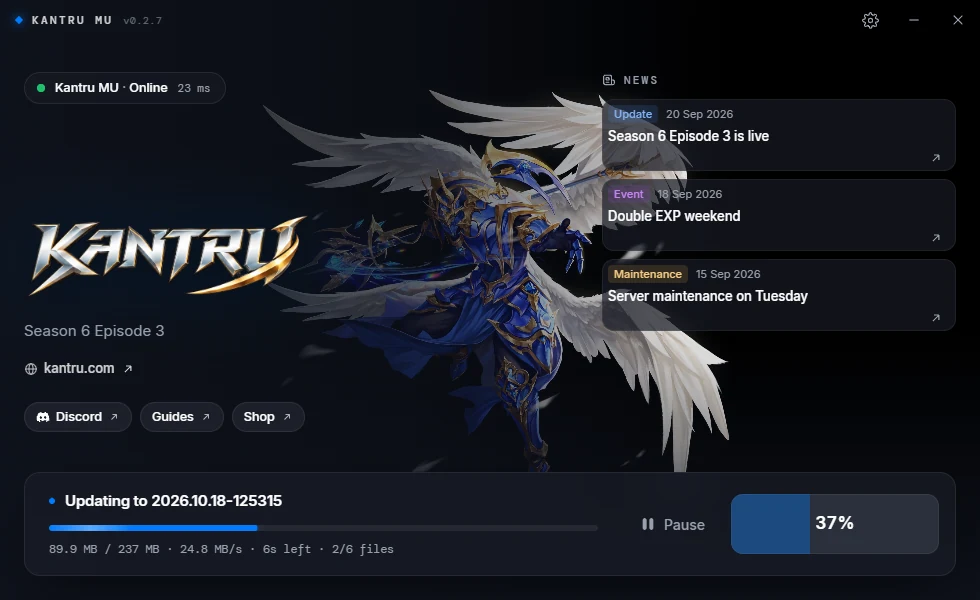
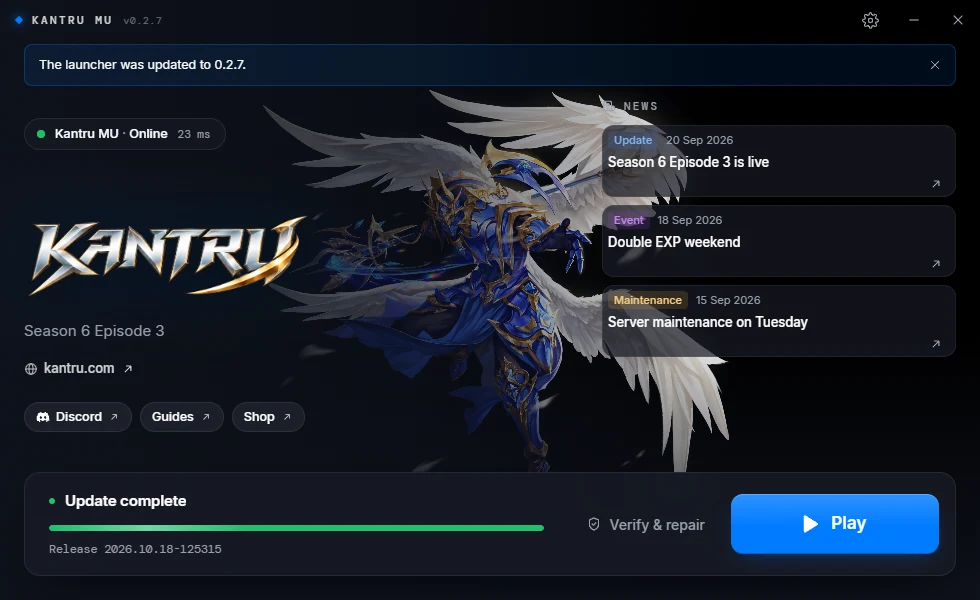
While it downloads, the bar shows Updating to and the release, how much is downloaded, the speed, the time left and the number of files. When it is done it says Update complete and the big button turns into Play.
Pause and resume
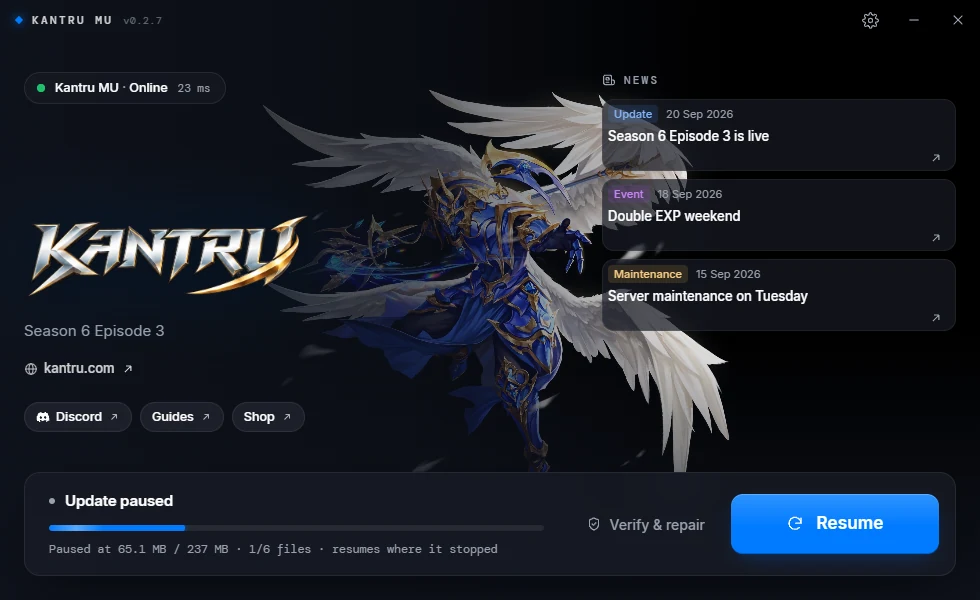
Pause stops the download. The parts already downloaded are kept, so Resume continues where it stopped.
Verify & repair
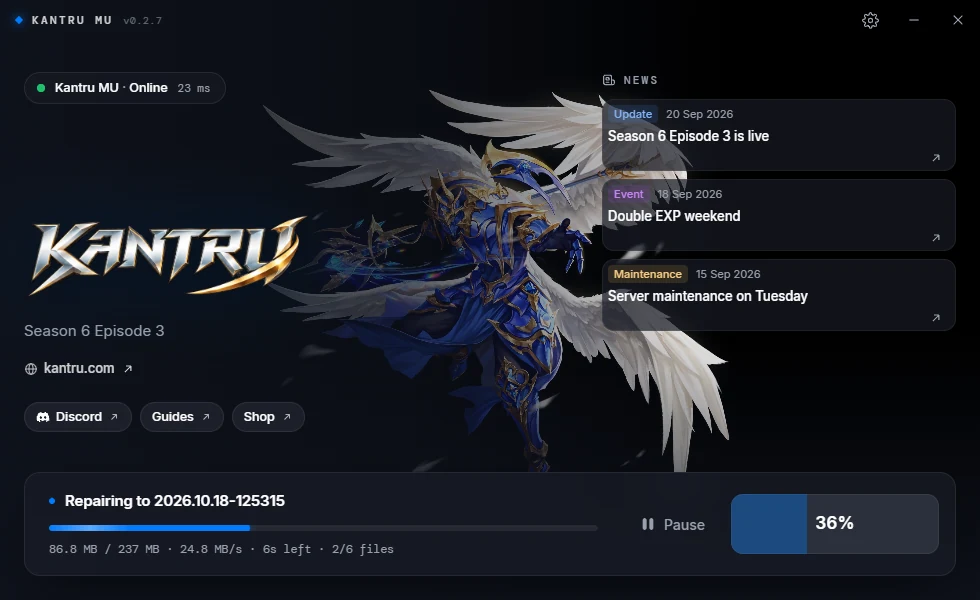
Verify & repair checks every game file against the current release and downloads any file that is different or missing. It takes longer than a normal update because it reads the whole game folder.
Use it when:
- the game crashes or closes right after it starts, or shows broken textures or texts;
- the launcher says Main.exe was not found in the game folder;
- your antivirus removed or quarantined a game file;
- you changed game files yourself and want the original ones back.
Your own files, such as screenshots, are not touched.
When an update cannot finish
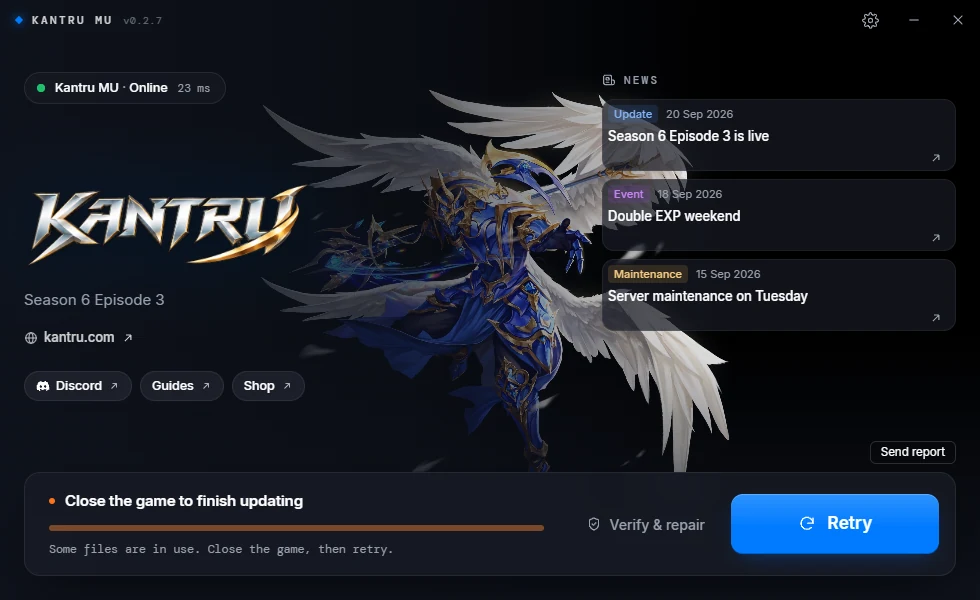
Close the game to finish updating. A running game keeps some of its files locked, so the launcher cannot replace them. Close every game, then press Retry.
Update failed. The launcher could not finish, for example because it could not reach the update server. Check your internet connection and that your firewall or antivirus does not block the launcher, then press Retry. The downloaded parts are kept.
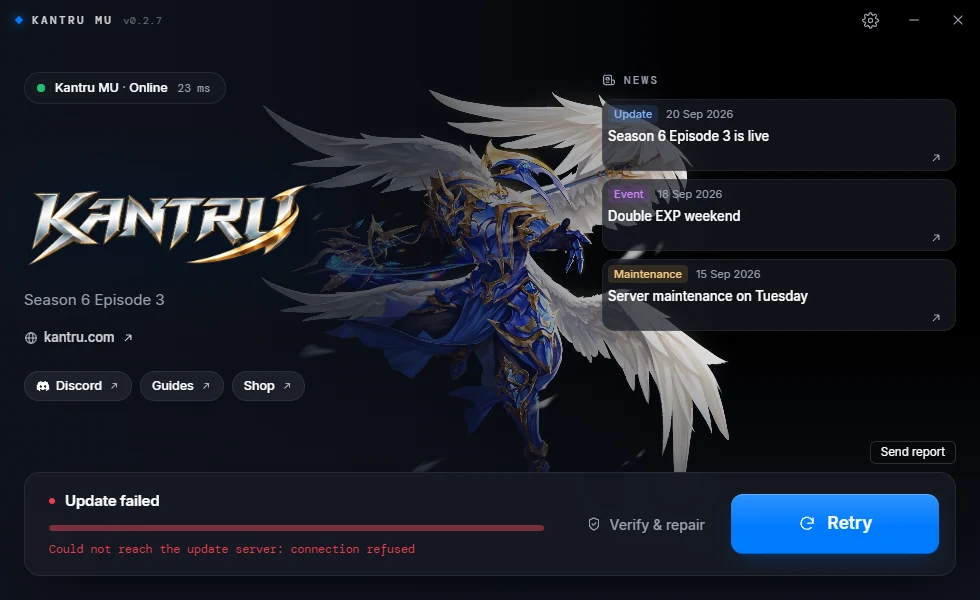
When something fails, a Send report button appears. It sends the error and the launcher and game logs to the server team, so they can see what went wrong. Nothing is sent unless you press it, or turn on Send error reports automatically in the Sound tab.
Other messages you may see:
- Access denied: the launcher folder is not writable. Move the whole game folder out of Program Files to a folder you own, such as
C:\Games\Kantru, and start the launcher from there. - Release ... needs launcher ... or newer. Your launcher is too old to install this release. Download the game again, or copy the new launcher over the old one.
The launcher updates itself
A new launcher version is downloaded and checked before the game update. The launcher then restarts by itself, and the next start says The launcher was updated to and the new version. Your options, your saved logins and the game files stay as they are.
If the launcher cannot update itself, it shows Launcher update failed and goes on with the game update. You can keep playing; it tries again the next time you open it.
Playing
Press Play to start the game. Keep the launcher open while you play (minimized is fine): it runs the shortcuts, the multiple games, the muting of games in the background and the death notifications.
While a game runs the button says Running. With multiple instances turned on it says Launch another until the limit is reached, then Limit reached.
Do not start Main.exe directly or from an old shortcut. The server refuses a game that was not started by the launcher (see Anti-cheat check failed).
Running several games
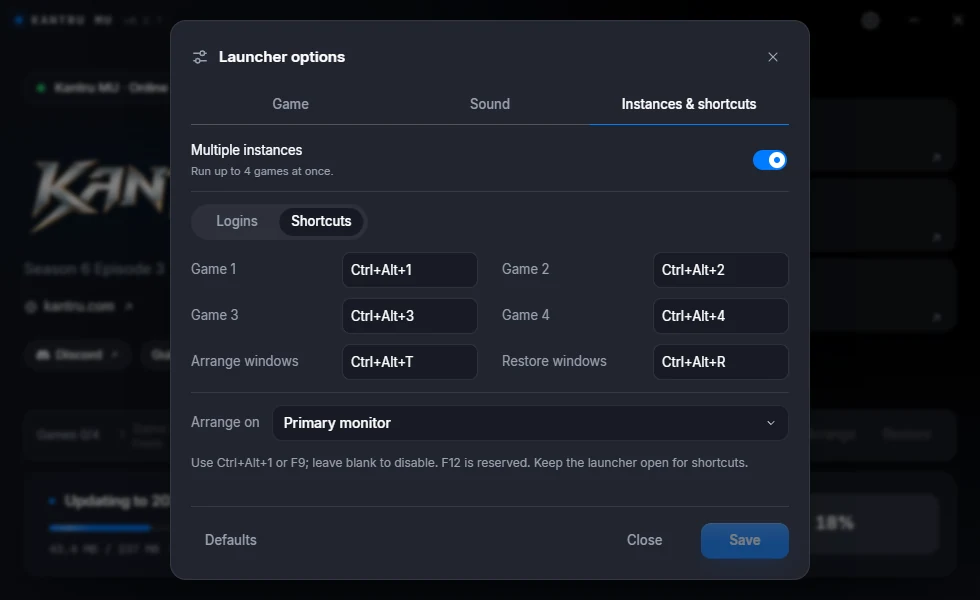
You can play up to 4 games at the same time. Turn it on with Multiple instances in the Instances & shortcuts tab, then press Launch another for each extra game.
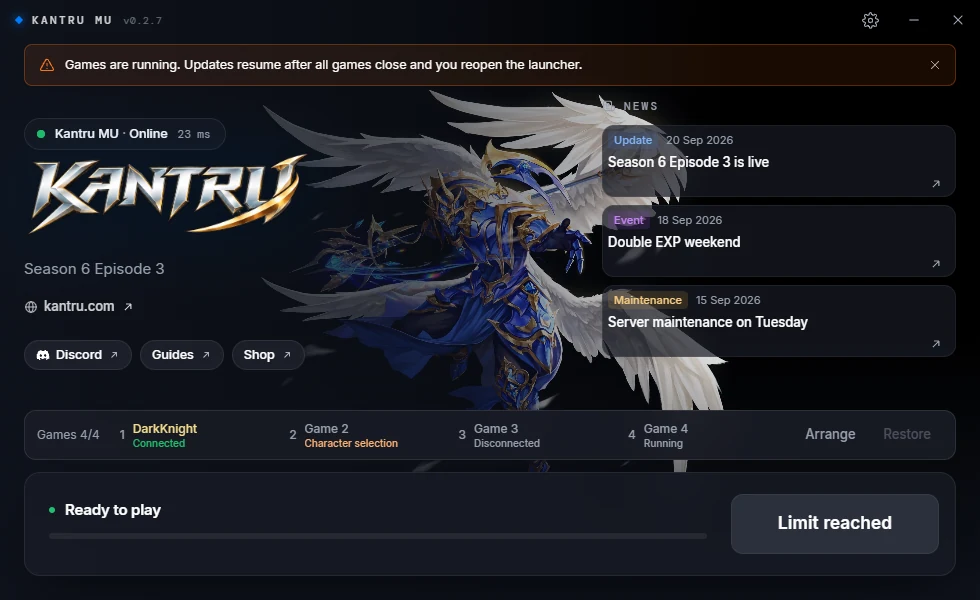
The games bar shows one slot per game, with the character name once you are in the game and its state: Starting, Character selection, Connected, Disconnected, Running or Closed. Click a slot to bring that game to the front.
- Arrange places the game windows side by side on one monitor. All games must be in Windowed mode, and you need two to four games running.
- Restore puts the windows back where they were before.
With more than one game, only the game you are looking at plays sound (see Mute audio/music when unfocused).
Options
The gear in the title bar opens the options. They have three tabs: Game, Sound and Instances & shortcuts (the last one only on servers that allow several games).
- Save saves the changes of every tab at once. The window stays open and says Settings saved.
- Cancel throws away the changes, Close closes the window.
- Defaults puts the tab you are on back to its default values. Nothing is saved until you press Save.
The game options are read by the game when it starts, so close every game before you change them. While a game runs they are greyed out and the launcher says Close games to edit game settings. (The game saves its own settings when it exits, which would overwrite yours.)
Game tab
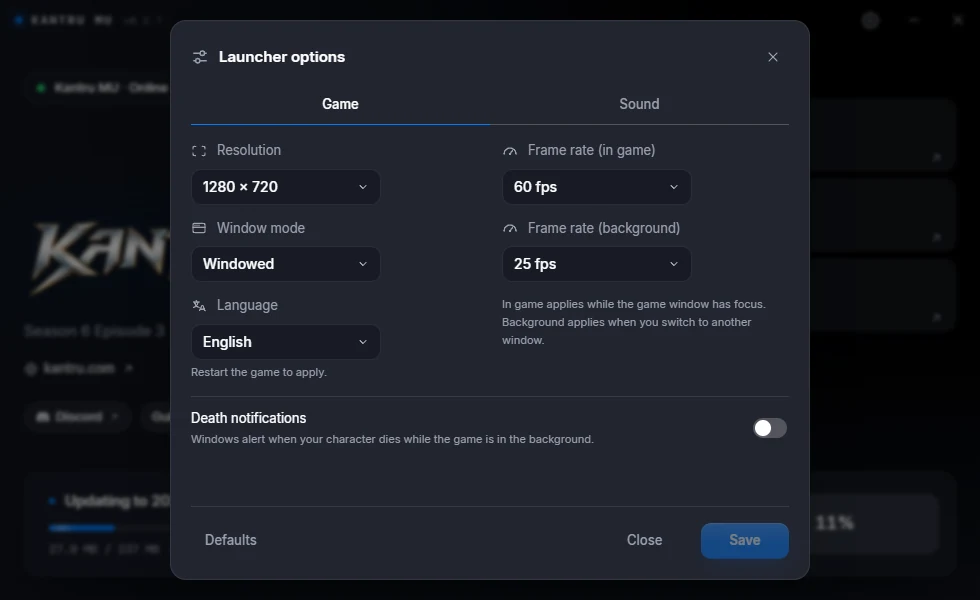
| Option | What it does | Default |
|---|---|---|
| Resolution | The size of the game window, from 800 × 600 to 3840 × 2160. | 1024 × 768 |
| Window mode | Fullscreen, Windowed (a window with a frame) or Borderless (a window without a frame that covers the screen). Use Windowed for several games. | Fullscreen |
| Language | The language of the game and of the launcher. See below. | Your Windows language |
| Frame rate (in game) | The highest frame rate while the game window is in front: 25, 30, 45, 60, 75, 90, 120 or 144 fps, or Unlimited. | 25 fps |
| Frame rate (background) | The highest frame rate while you are in another window. A low value keeps your PC cooler and quieter, especially with several games. | 25 fps |
| Death notifications | A Windows notification when your character dies while the game is in the background, with who killed it and where. | Off |
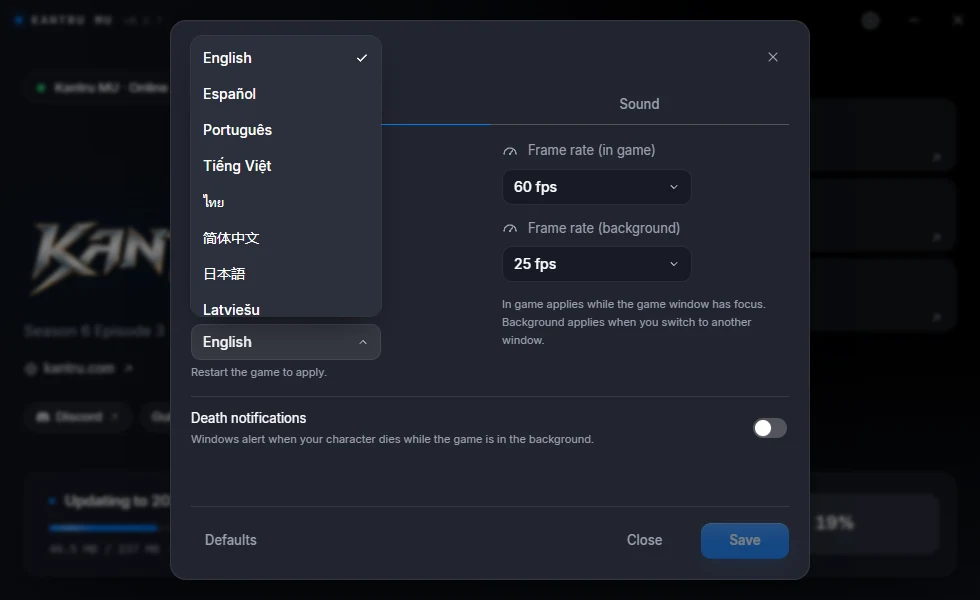
Language is one choice for both the game and the launcher. The list only shows the languages the game has: English, Español, Português, Tiếng Việt, ไทย, 简体中文, 日本語 and Latviešu. The launcher switches as soon as you press Save; the game uses the new language the next time it starts (Restart the game to apply.). The first time you open the launcher, it uses your Windows language when the game has it, otherwise English.
Sound tab
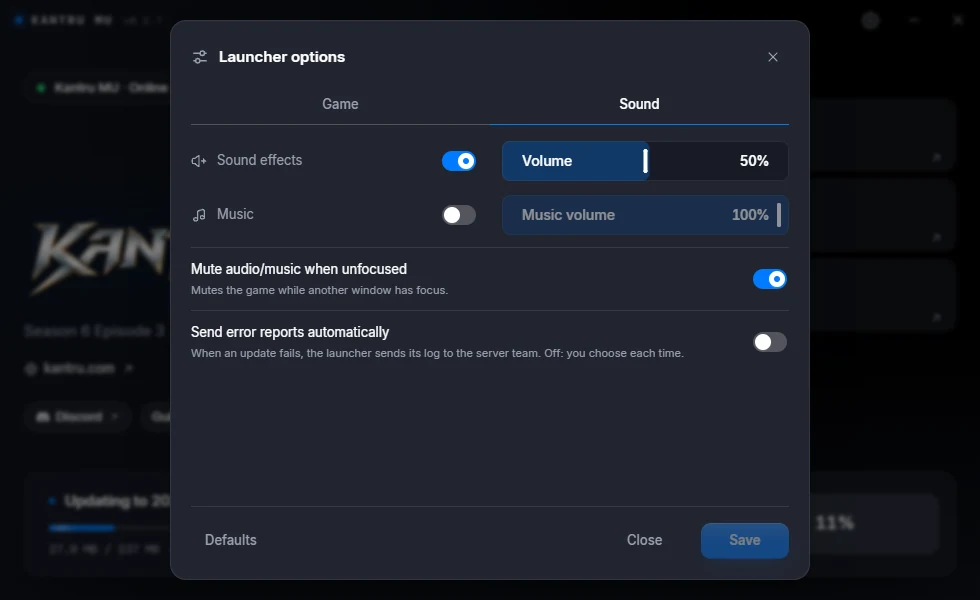
| Option | What it does | Default |
|---|---|---|
| Sound effects and Volume | Turns the game sounds on or off and sets their volume, from 0 to 100%. | On, 50% |
| Music and Music volume | Turns the music on or off and sets its volume. | Off, 100% |
| Mute audio/music when unfocused | Mutes the game while another window is in front. With multiple instances this is always on, so only the game you are looking at plays sound. | On |
| Send error reports automatically | When an update fails, the launcher sends its log to the server team by itself. Off: you choose each time with Send report. | Off |
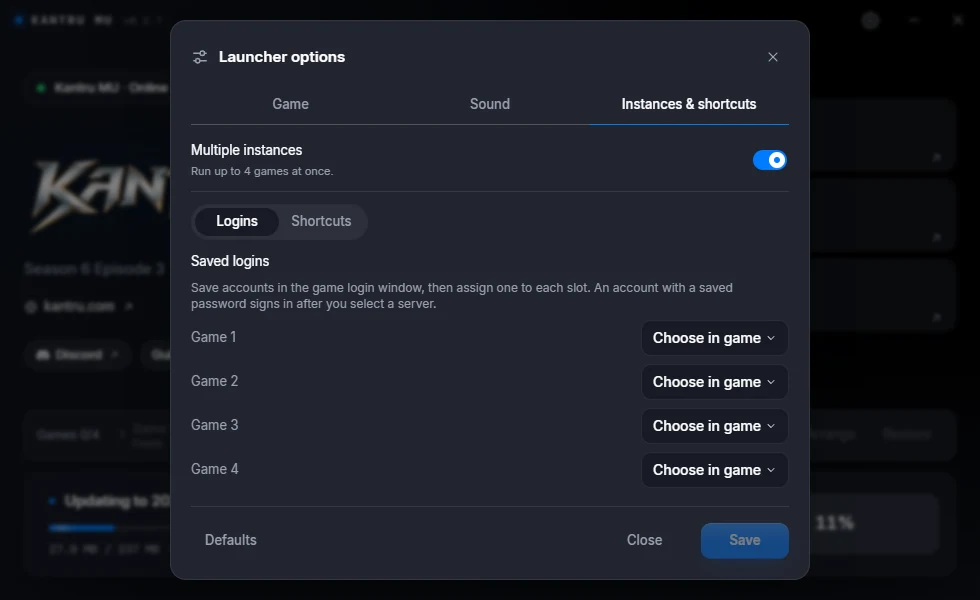
Instances & shortcuts tab
Multiple instances turns running several games on or off. Off: one game at a time, and the games bar is hidden.
Logins. Save your accounts in the game's login window first. Then pick one account for each game slot. A slot with an account that has a saved password signs in by itself after you choose a server; for one marked password required you type the password in the game. Choose in game leaves the login window empty.
Shortcuts. Keys that work anywhere in Windows while the launcher is open (it can be minimized):
| Shortcut | Does | Default |
|---|---|---|
| Game 1 to Game 4 | Brings that game to the front. | Ctrl+Alt+1 to Ctrl+Alt+4 |
| Arrange windows | Same as the Arrange button. | Ctrl+Alt+T |
| Restore windows | Same as the Restore button. | Ctrl+Alt+R |
A shortcut is Ctrl, Alt or Shift together with a letter or digit, or a key from F1 to F11. F12 is reserved by Windows. Leave a box empty to turn that shortcut off. If another program already uses a shortcut, the launcher tells you so when you save; pick another one.
Arrange on chooses the monitor that Arrange uses. The default is your primary monitor.
Notices
Notices appear in a bar at the top of the launcher. Close one with the × on its right. Most stay closed until you open the launcher again; the graphics card notice stays closed until the next time the game starts.
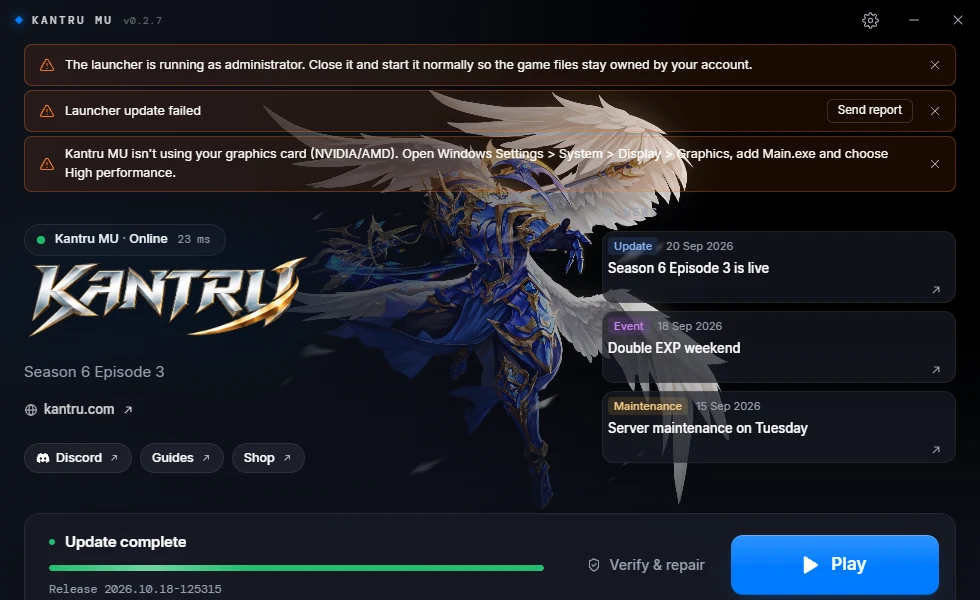
- The launcher is running as administrator. Close it and start it normally, with a double click, not with Run as administrator. Files that the launcher writes as administrator belong to the administrator account, and later updates or the game itself can fail on them.
- Launcher update failed. The launcher could not update itself this time. The game update still runs. Send report sends the details to the server team.
- Kantru MU isn't using your graphics card. The game is drawing with Windows' slow built-in renderer instead of your NVIDIA or AMD card. See the steps below.
- Games are running. The launcher was opened while games from this folder were already running. Updates resume after you close all games and open the launcher again.
Troubleshooting
Windows asks to install WebView2
The launcher draws its window with the Microsoft Edge WebView2 Runtime. It is part of Windows 11 and up-to-date Windows 10, but some PCs do not have it. When it is missing, a window titled WebView2 Runtime required asks whether to install it.
- Press Yes. The launcher downloads Microsoft's installer (about 2 MB), checks that it is really signed by Microsoft, and runs it. It takes about a minute and does not need administrator rights.
- The launcher opens when the install is done.
If you press No, or the install fails, the launcher offers to open Microsoft's WebView2 page. Install the Evergreen Bootstrapper from there, then start the launcher again.
The game isn't using your graphics card
The game writes which renderer it uses each time it starts. If that is Windows' built-in software renderer (shown as GDI Generic), the game runs slowly and the launcher shows this notice. Usually Windows has put the game on the wrong graphics card, which happens a lot on laptops with two.
- Open Windows Settings > System > Display > Graphics.
- Under Custom options for apps, choose Add desktop app (on Windows 10: Desktop app, then Browse) and select Main.exe in your game folder.
- Click the new Main.exe entry, choose Options, pick High performance (your NVIDIA or AMD card) and save.
- Close the game and start it again from the launcher.
If the notice comes back:
- Update the driver of your graphics card from the NVIDIA or AMD website. The driver from Windows Update sometimes lacks OpenGL support.
- In the NVIDIA Control Panel (Manage 3D settings > Program settings) or AMD Software, set Main.exe to use the high-performance card.
- On a laptop, plug in the charger: some laptops turn the graphics card off on battery.
- Remote desktop sessions and some virtual machines only have the software renderer.
Anti-cheat check failed
The game shows this message and closes:
Anti-cheat check failed. Close the game and start it again from the Kantru launcher. If it keeps failing, wait 10 minutes and try again.
- Close the game.
- Start it again with Play in the launcher. Do not start Main.exe directly, from an old desktop shortcut or from another launcher.
- If it keeps failing, wait 10 minutes, then try again.
- Still failing? Run Verify & repair, then try again. If that does not help, ask on Discord.
The game does not start
- Main.exe was not found in the game folder: run Verify & repair. If the file disappears again, your antivirus is removing it; add the game folder to the antivirus exceptions and repair again.
- The game did not start: run Verify & repair, then try again. Close other programs that hook into games (overlays, recorders, cheat tools) and try once more.
The update does not finish
- Close the game to finish updating or Some files are in use: close every game, then press Retry. If no game is open, restart your PC and open the launcher again.
- Could not reach the update server: check your internet connection, and allow the launcher in your firewall and antivirus. Then press Retry.
- The launcher folder is read-only or access denied: move the game folder out of Program Files to a folder you own, such as
C:\Games\Kantru. - If an update keeps failing, press Send report so the server team gets the details, and tell them on Discord.